FACE SWAP / PHOTO TO PHOTO
NSFW face swap.Two photos. One new portrait.
Keep the scene you like and bring in another face. Add the target photo on the left, the source face on the right, then make your new portrait.
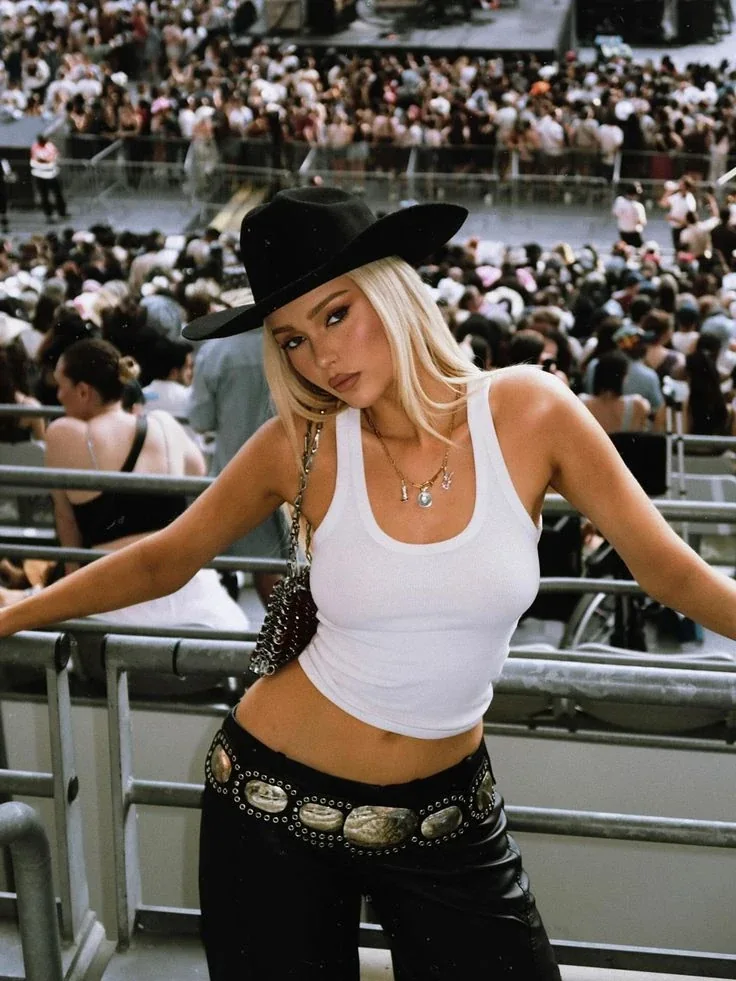
The scene, outfit and pose you want to keep.
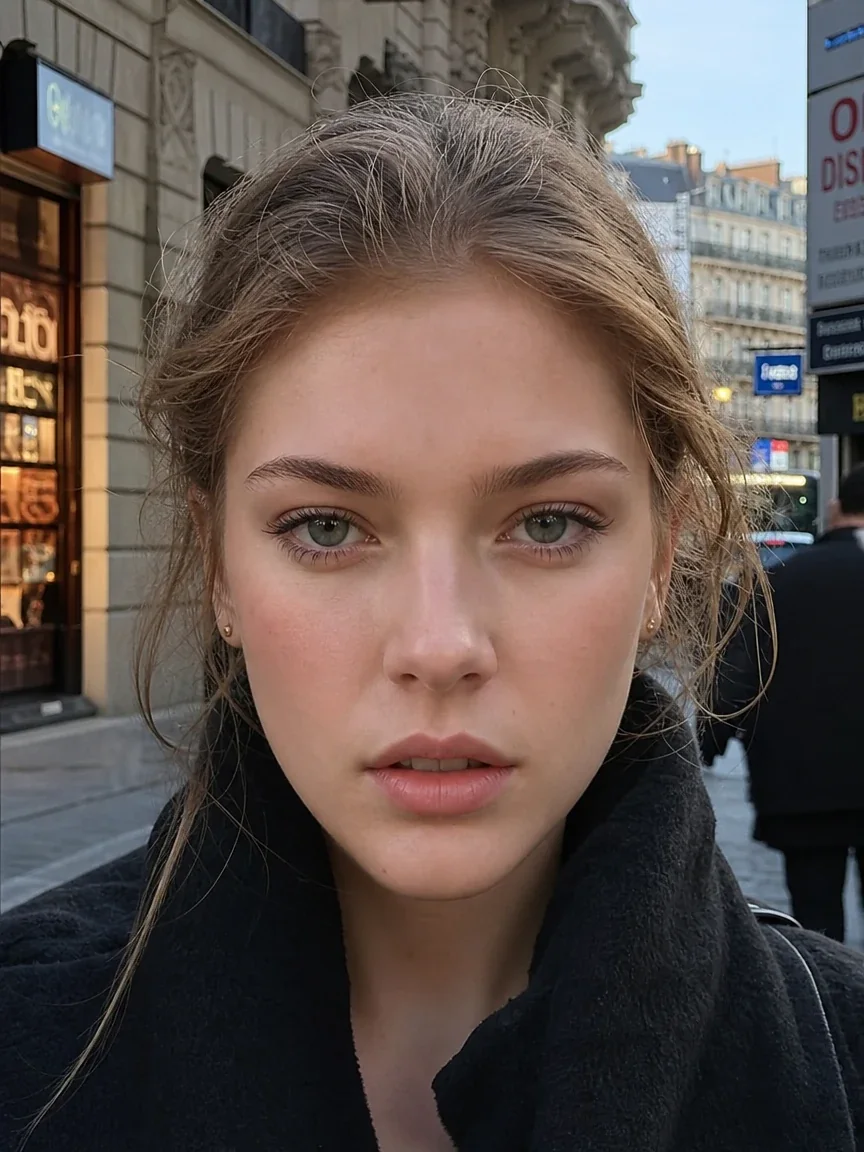
A clear photo of the face you want to insert.
Use one clearly visible face in each photo. Group photos can select a different face than you intend.
?
1 credit × 1 = 1 credit
NAIE Face Swap
Charged when submitted. Confirmed generation failures return credits.
15 free credits first · then 10 · each valid for 24 hours
Open My creationsCreations are saved for 7 days. Download the ones you want to keep.
Same scene. A different face.
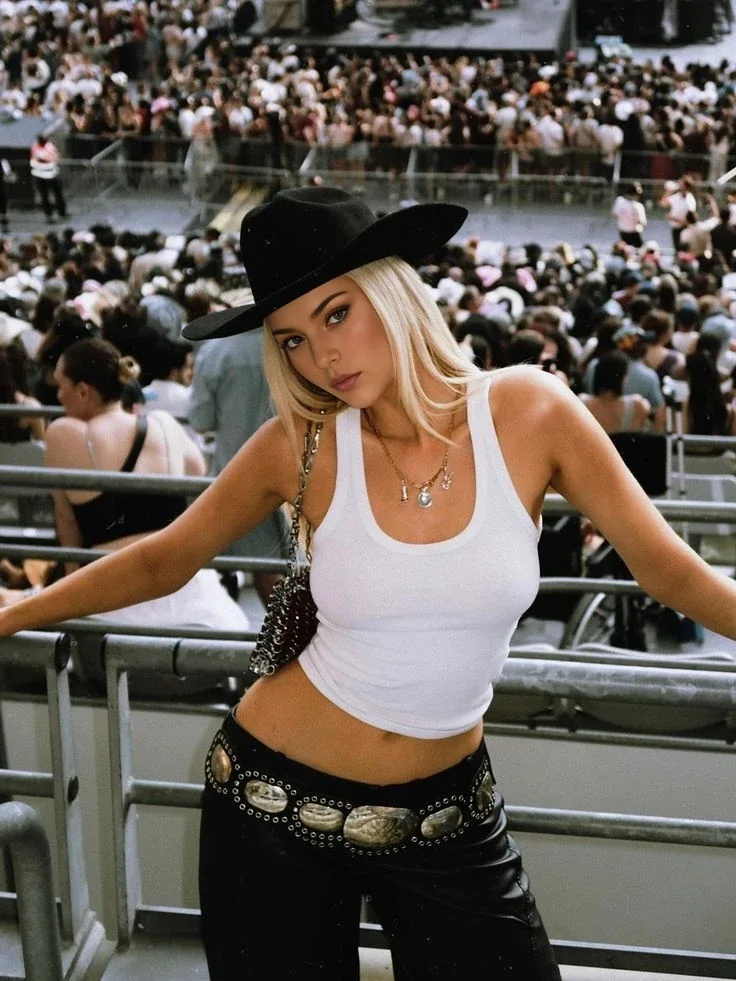
Follow the original photo, the face reference and the finished swap. The outfit and setting come from the original; the identity comes from the second photo.
The face you want to bring into the scene.
A new face in the same outfit, pose and setting.
Compare the original and swap result
Slide to compare, or use the arrow keys.
A closer look at a portrait swap.
Compare the two portraits and the small face reference. Look at the eyes, facial shape and how the new face meets the existing hair and light.
One face. More places to take it.
A painted portrait, a magazine-style look or a cinematic scene. Choose the setting in your original photo, then use the same face reference for your next idea.
Create your ownLook at the face, not just the whole photo.
These close-ups use the same original and result shown above. Switch the detail you want to inspect, then compare the two sides.
Eyes & expression
Check that both eyes point naturally and the expression belongs in the scene. If they look uneven, try a clearer source face with a closer angle.
Two photos. Two different jobs.
Keep the outfit, pose and setting you like. Introduce the face you want to use. You choose both photos; no written prompt is needed.
- 01
Choose the scene
The target photo defines the body, clothes and background. Start with one clearly visible adult face.
- 02
Bring the identity
Use a sharp source face with clear eyes and similar head direction. Heavy filters and covered faces make matching harder.
- 03
Check the blend
Compare the result at full size. Inspect the eyes, jawline and lighting before saving it.
Choose your model. Know your cost.
Face Swap takes two photos and returns one image. No prompt to write; the current credit quote is shown before you generate.
NAIE Face Swap
Swap a face using your target photo and source portrait.
Find a look for your next portrait.
Fashion, studio light and after-dark styling. These single portraits are inspiration for the scene you choose.
Red satin & soft light
Copper hair, open air
City character
Soft studio portrait
Bring the face. Choose the scene.
Explore your next uncensored AI face swap idea with two photos and a clear credit quote.
Create your ownLove the portrait? Give it a next scene.
This tool swaps faces in still images. Save your result, then use image-to-video if you want to add movement.
Explore image to videoA few useful answers
Which photo is the target and which is the source?
The target is the photo whose scene and body you want to keep. The source is the face to insert. Upload them into the two labeled slots in that order.
How many credits does an AI face swap cost?
Face Swap 2 costs 1 credit per image; Face Swap costs 2 credits. The model and total are shown before submission.
Do I need a face swap prompt?
No. Both face swap models use the two images directly. Written prompts, frame ratios and video duration controls are not part of this task.
Does NSFW mean every face swap is allowed?
No. Use adult photos and likenesses you have permission to use. Content restrictions still apply; do not use the tool to impersonate or harm someone.
Where can I reuse one face in several NSFW character photos?
Use NAIE’s photo face swap and keep the same face reference for each new target photo. The target supplies the scene and pose; the reference supplies the face. Similar head angles and clear lighting help. Review each result separately, as using the same reference does not guarantee identical facial details.
Should I change the pose or swap the face first?
For a photo workflow, prepare the pose in AI Pose Changer, check the body and composition, then use that finished image as the target for Face Swap. This makes it easier to see which step changed a detail. Each edit is a separate task; inspect the final face before animating the image.